
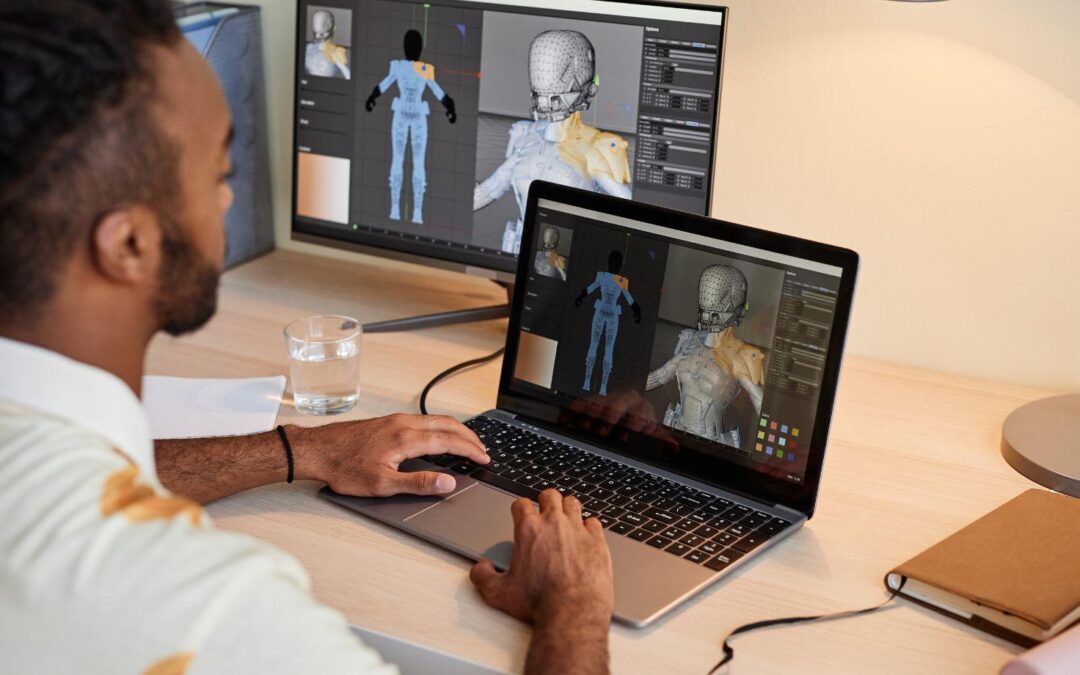
The best animation features for both beginners and professionals combine simple starting points with room to grow, such as presets, timelines, and fine motion controls. Adobe Firefly’s AI animation generator covers the simple end, turning images, sketches, or text into 2D or 3D clips, and its output moves into After Effects for professional refinement.
Picture a small design studio with two people on animation duty. One is a junior designer who has never keyframed anything. The other is a senior motion designer who lives in graph editors. They need tools that let the junior designer contribute right away without slowing down the senior designer’s precise work. That balance is what “user-friendly for everyone” really means. A good animation tool should make the first result easy, then reveal deeper controls as skills grow, and it should fit into the professional apps a team already uses.
Three kinds of features tend to make that possible. The first is quick starts, like templates, presets, or AI generation, that produce something usable in minutes. The second is familiar structure, like a visible timeline and keyframes, so beginners learn concepts that transfer to other tools. The third is depth on demand, like curve editors, rigging, and custom easing, which professionals need but beginners can ignore until they’re ready. The tools below each emphasize a different mix.
What Can an AI Animation Generator Do?
An AI animation generator turns a description or image into animated video, giving beginners a fast start and professionals a quick way to explore ideas.
Adobe says Firefly’s AI animation generator works from images, sketches, character designs, or text prompts and creates animation in 2D, 3D, or a mix of both. You can set resolution up to 4K and choose vertical or horizontal formats. Adobe says no complex tools or advanced skills are required, and that you get control over visual style, motion speed, and timing.
For professionals, Adobe highlights switching between Adobe and partner video models, comparing outputs side by side in Firefly Boards, and bringing animation into Premiere, After Effects, or Photoshop. Adobe also says Firefly doesn’t add a watermark, and its Firefly video models are commercially safe.
Animation Features in Blender
Animation features in Blender serve beginners who want a free tool and professionals who need a complete pipeline.
Blender describes itself as a free and open source 3D creation suite that supports the entire 3D pipeline, including modeling, rigging, animation, simulation, rendering, compositing, motion tracking, and video editing. Its site highlights advanced sculpting tools and rigging and animation tools with full support for onion skinning.
For 2D work, Blender’s Grease Pencil provides a full 2D drawing and animation system inside the 3D environment. Its Graph Editor uses F-curves to control how keyframes are interpolated, with options like Constant, Linear, and Bezier, plus easing controls. Hundreds of community add-ons, built with Blender’s Python API, extend these features further.
The trade-off is learning time, since Blender’s depth can feel overwhelming at first, but the skills transfer to almost any animation job.
Which Animation Maker Is Easy to Use for Beginners?
An animation maker that’s easy to use for beginners usually runs in a browser and gets you to a finished result quickly.
Firefly: Describe a scene or upload a sketch, and the AI generates the motion, with free daily generations on a free Adobe account.
Wick Editor: A free, open-source browser tool inspired by Flash, HyperCard, and Scratch, according to GameFromScratch. It supports layers and frame-by-frame animation, which makes it great for learning the basics.
Powtoon: A presentation-style animation maker for explainers and animated slides. A university tutorial notes that it exports formats including MP4, GIF, and PPT, with some formats reserved for premium users.
Starting with one of these builds confidence. When beginners want more control, the concepts they learn, like keyframes and timing, carry over to professional software.
Animation Software That’s Easy to Use and Still Professional
Animation software that’s easy to use and still professional balances an approachable start with production-grade controls. The table below compares four options.
|
Tool |
Beginner-friendly features |
Professional features |
|
Adobe Firefly |
Text, image, or sketch prompts; no advanced skills required |
Up to 4K; multiple video models; Firefly Boards; integration with Premiere and After Effects |
|
Adobe After Effects |
Easy Ease keyframe assistant for smooth motion |
Five keyframe interpolation methods; Graph Editor with speed and value graphs |
|
Rive |
Free editor in a browser or desktop app |
State Machines for interactive logic; open-source runtimes; .riv export on paid plans |
|
Toon Boom Harmony |
Multiple editions for different needs |
QuickTime and ProRes export; game exports to Unity sprite sheets |
A common studio workflow pairs these strengths: the junior designer generates concept animations in Firefly, and the senior designer refines timing, adds graphics, and finalizes the piece in After Effects.
FAQ
Can beginners use professional animation software?
Yes, with patience. Tools like Blender and After Effects have steep learning curves, but beginners can start with basic keyframes and grow into advanced features over time.
Is AI animation useful for professionals?
Many professionals use AI generation for concepts, storyboards, and background elements, then refine the results in editing software. Adobe says Firefly animations can move into After Effects and Premiere for further work.
Can I use Firefly animations commercially?
Adobe says outputs from its Firefly video models are commercially safe. If you start from an uploaded image, that image must not violate copyright, trademark, privacy, publicity, or other rights.